Studio
Fit, inspect, and export.

SMILE Studio is an integrated desktop IDE for machine learning and data science. It combines an interactive multi-language notebook, an AI-powered agent panel, a file explorer, and a kernel explorer in a single window. Launch it from the release package:
cd bin
./setup    # first-time: installs native libraries
./smile    # launches SMILE Studio
SMILE Studio requires Java 25 and a graphical (non-headless) environment.
At least 4 GB RAM; 8 GB recommended for large datasets.
Open Studio from your project directory so the file tree, notebooks, and
SMILE.md memory file all live next to your data.
Your First Session
-
Download the latest
smile-<version>.zipfrom the releases page and unzip it. -
Run first-time setup once (BLAS/LAPACK, Python venv — see Quick Start):
/path/to/smile/bin/setup -
Create a project folder and put datasets in
input/:mkdir -p myproject/input # copy your CSV / Parquet / … files into myproject/input/ -
Launch Studio from the project directory (so the file tree and
SMILE.mdsit next to your data):cd myproject /path/to/smile/bin/smile -
Configure an AI provider under File > Settings… (needed for agents, cell prompts, and Tab completion).
-
In Clair’s tab, initialize the project, then explore with natural language, AutoML, or a notebook:
/init
/automl
Or open a notebook and work through the Tutorial examples cell by cell.
Application Layout
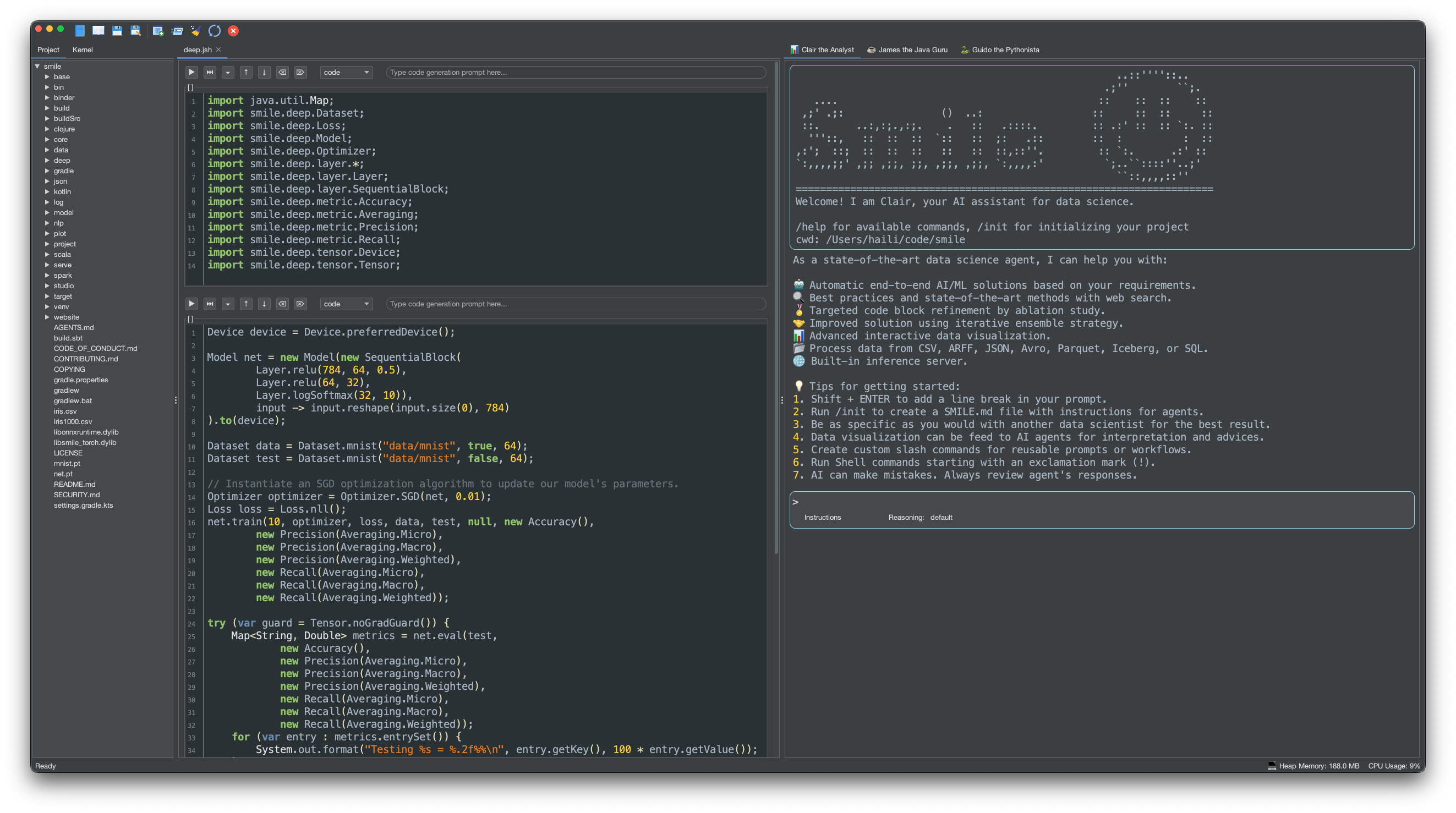
| Panel | Description |
|---|---|
| Notebook (center) | Multi-cell editor supporting Java (JShell), Scala, and Python kernels.
Supports .java, .jsh, .scala,
.sc, .py, and .ipynb files. |
| AI Agent Panel (right) | Seven built-in agents: Frank the Chief of Staff (coordination),
Steve the Product Manager (product),
Clair the Analyst (end-to-end ML),
Ada the Architect (system design),
James the Java Guru (Java/SMILE),
Guido the Pythonista (Python), and
Chuck the Desktop Operator (GUI automation). Supports slash
commands, shell execution, and long-term memory via SMILE.md. |
| Project Explorer (left) | File tree of the current working directory. Double-click any supported source file to open it in the notebook. |
| Kernel Explorer (left) | Live view of runtime variables grouped by type (DataFrames, Matrices, Models, Services).
Double-click a Model node to save it as a .sml file and register
it as an inference service. |
Using the Notebook
File > New creates an Untitled.java notebook
with SMILE imports already filled in. File > Open… or
double-click a file in the Project Explorer loads
.java / .jsh, .scala / .sc,
.py, or .ipynb. Other text files open in the Notepad
instead of the notebook.
Each cell has a type combobox (Code, Markdown,
or Raw), a Prompt field for AI code generation,
and a toolbar to run, move, clear, or delete the cell. Execution is asynchronous;
a second Run while a cell is still running shows a warning rather than overlapping
jobs. After a successful snippet, Studio prints the last value
(for example ⇒ DataFrame df = [200 rows × 5 columns]).
Save with File > Save. Enable File > Auto Save to write every 60 seconds (only notebooks that already have a path). If another process changes an open file, Studio asks whether to reload.
Project and Kernel Explorers
The left split has two tabs:
- Project — file tree of the working directory. Double-click a notebook/script to open it; double-click other text files to open them in Notepad.
- Kernel — live variables from the active notebook,
grouped as DataFrames, Matrix, Models, and Services.
Double-click a DataFrame or matrix to open a viewer; double-click a
Model to save a
.smlfile; double-click a Service to start a REST inference server for that model.
Execution Kernels
| Kernel | How to use | Notes |
|---|---|---|
| Java (JShell) | Open or create a .java / .jsh notebook |
Runs in a separate JVM; ZGC, 75% max RAM. New notebooks are pre-populated with all SMILE imports. |
| Scala | Open a .scala / .sc notebook |
JSR-223 script engine; all SMILE Scala operators available. |
| Python (iPython) | Open a .py / .ipynb notebook |
Requires pip install ipython. |
Key Shortcuts
| Shortcut | Action |
|---|---|
Ctrl + Enter | Run cell, stay in current cell |
Shift + Enter | Run cell, move to next cell (creates one if needed) |
Alt + Enter | Run cell, insert new cell below |
Tab | AI-powered line completion (requires AI service configured) |
Ctrl + = / Ctrl + - | Increase / decrease font size globally |
Magic Commands
Notebook cells can run kernel-specific magics without leaving the editor.
In a Java cell, lines starting with //! are intercepted
before they reach JShell. The supported magic resolves a Maven
artifact (transitively) and adds it to the JShell classpath at
runtime — no kernel restart required:
//!mvn org.apache.commons:commons-math3:3.6.1
Python notebooks use IPython’s built-in magics (line magics with
%, cell magics with %%). See IPython’s
magic command reference
for the full list. Common examples:
%pip install pandas
%time df.describe()
%%timeit
model.fit(X, y)
AI Agents
The right-hand Agent Panel ships with seven built-in agents, each in its own tab. They appear in the order Frank, Steve, Clair, Ada, James, Guido, Chuck. Switch between them depending on the task:
| Agent | Role |
|---|---|
| Frank the Chief of Staff | Strategic partner: prioritization, cross-agent coordination, status synthesis, and holding work to stated goals. |
| Steve the Product Manager | Frames objectives, user stories, experimentation hypotheses, and analytical roadmaps. |
| Clair the Analyst | End-to-end ML workflow: load data, visualize, train, evaluate, and serve models. |
| Ada the Architect | System design, domain decomposition, contracts, and non-functional requirements. |
| James the Java Guru | Java and SMILE API help: code generation, reviews, and notebook completion. |
| Guido the Pythonista | Python notebook assistance and data-science library guidance. |
| Chuck the Desktop Operator | Drives native GUI applications: navigation, screenshots, and on-screen verification. |
All seven require an AI provider (OpenAI, Anthropic, Google Gemini, Azure OpenAI,
or Vertex AI) and API key under File > Settings….
MCP (Model Context Protocol) servers can be wired in via
.smile/mcp.json for extra tools.
Prompts
You can drive the agents from two places:
- Notebook cell Prompt field — type a natural-language description (e.g. “load iris.csv into a DataFrame”) and press Enter. Generated code streams into the cell editor. Press Tab in the editor for single-line completion.
- Agent Panel — send an Instructions turn
(legend
>) for a conversation, or a Shell turn (legend!) to run a subprocess. Agents keep project context inSMILE.md.
Slash Commands
In the Agent Panel, type / followed by a command and press
Ctrl+Enter. A hint tooltip appears as you type.
Session, memory, and CLI commands are shared; the longer skill list below
is what Clair exposes for end-to-end ML work.
Type /help in a given agent tab for that agent’s full set.
Session, memory, and tools
| Command | Description |
|---|---|
/memory show | Display the content of long-term memory |
/memory add | Add facts or notes to long-term memory |
/memory edit | Open a notepad to edit the long-term memory |
/memory refresh | Reload the context from disk |
/plan | Enter plan mode |
/plan off | Exit plan mode |
/clear | Clear the current conversation session |
/compact | Summarize the conversation and retain critical details |
/edit | Edit a file with the notepad |
/open | Open a file with the default application |
/find-docs | Retrieve up-to-date documentation, API references, and code examples |
/changelog | Create a customer-friendly changelog from git commits |
/pptx | Create a PowerPoint presentation |
/skill-creator | Create, improve, and measure agent skills |
Train, predict, and serve
| Command | Description |
|---|---|
/train | Train a machine learning model |
/predict | Run batch inference |
/serve | Start an inference service |
Clair skills
| Command | Description |
|---|---|
/init | Initialize a data analysis project from one or more data files: load data, profile structure and quality, detect column-name issues, generate summary statistics, identify key patterns, and write SMILE.md |
/summarize | Analyze a tabular data file and produce a comprehensive summary (structure, quality, statistics, patterns, visualizations) without asking what to do next |
/exploratory-data-analysis | Systematic EDA on tabular data: structure, quality, distributions, relationships, and anomalies before modelling |
/preprocess | Clean, repair, and prepare raw tabular datasets for model readiness |
/resampling | Balance class distributions with oversampling, undersampling, or hybrid resampling |
/feature-engineering | Select, create, transform, and validate input features |
/deep-feature-synthesis | Generate features from multi-table relational data via Featuretools (Deep Feature Synthesis) |
/caafe | Context-Aware Automated Feature Engineering from a natural-language dataset description |
/model-selection | Choose a model family from problem type, data characteristics, and constraints |
/hyperparameter-tuning | Search for an optimal hyperparameter configuration within a compute budget |
/neural-architecture-search | Design and optimize neural network architectures for a task, dataset, and hardware |
/model-evaluation | Evaluate and compare models with task-appropriate metrics, visualizations, and statistical tests |
/postprocess | Calibrate and interpret raw predictions into user-ready outputs |
/automl | End-to-end automated pipeline: EDA, preprocessing, features, model selection, tuning, architecture search, ensembling, postprocessing, and evaluation |